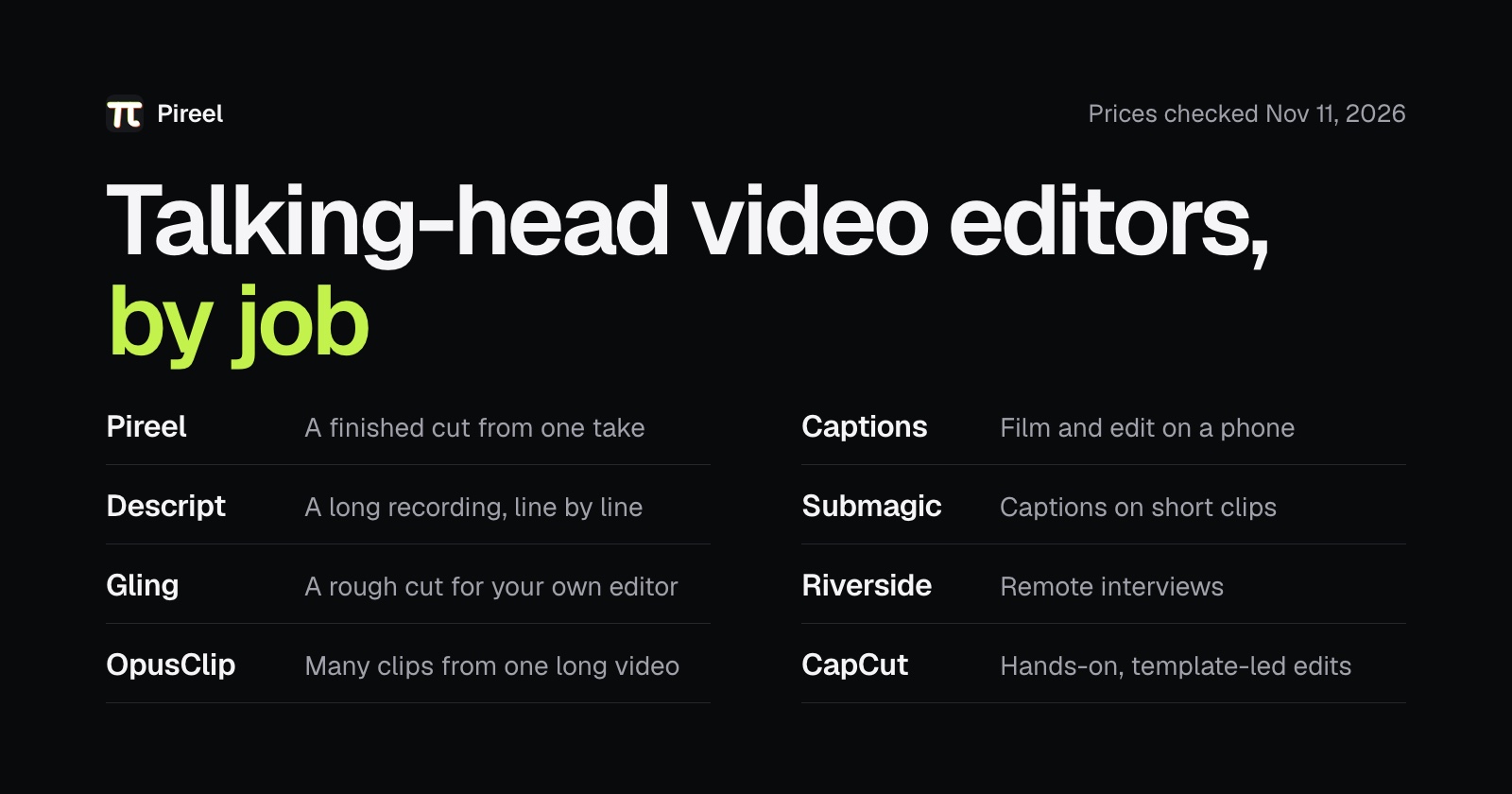
The best AI video editor for talking-head videos depends on what you do with the recording. To get one take back cut, captioned and illustrated, start with Pireel. To edit a long recording line by line, Descript. For a rough cut you finish in Premiere, Final Cut Pro or DaVinci Resolve, Gling. For a batch of clips from one long video, OpusClip. On a phone, Captions or CapCut. For captions on clips that are already short, Submagic. For remote interviews, Riverside.
We make Pireel, so weigh our first pick accordingly. Each section says when another tool is the better choice. Prices and plan limits come from each tool's own pricing page, read on November 11, 2026.
Pick by what you record
| You have | You want | Start with |
|---|---|---|
| One take to camera, with restarts and pauses | A finished video: clean cut, captions, B-roll, graphics | Pireel |
| An hour-long interview, course or podcast | To read it through and cut it line by line | Descript |
| Raw YouTube footage | A rough cut that opens in your own editor | Gling |
| A long video or a back catalogue | Many vertical clips, posted on a schedule | OpusClip |
| Footage on your phone | To film, edit and post from the phone | Captions, CapCut |
| A clip that is already cut | Styled captions, zooms and B-roll on top | Submagic |
| A guest in another city | To record both sides and edit in one place | Riverside |
Prices and limits
| Tool | Free | Paid, as listed | Check before you pay |
|---|---|---|---|
| Pireel | 100 credits for a new account | Pro $20/month or $200/year, 2,000 credits a month | Credits are used per minute of video |
| Descript | 60 media minutes a month, 720p, watermark | Hobbyist $24/month, or $16 billed annually, 10 media hours | Media hours and AI credits are separate limits |
| Gling | 1 hour a month, watermark | Plus $20/month, or $10 billed annually, 10 hours | Unused hours do not carry over |
| OpusClip | Free plan with a watermark, no editor | Starter $15/month; Pro $29/month | 1:1 and 16:9 need Pro |
| Captions | Free version with one caption template | Max $24.99/month, 500 credits | The page prices iOS plans only |
| Submagic | None listed | Starter $12/month billed yearly, 15 videos | Starter videos stop at 2 minutes |
| Riverside | 2 hours of recording in total, 720p, watermark | Pro $29/month, or $24 billed annually | AI editing tools start on Pro |
| CapCut | Free plan | Pro $19.99/month or $179.99/year | The page says the final price shows after you sign in |
Minutes, hours, videos and credits measure different things. Price one of your own videos: the edit, one round of changes and the export.
1. Pireel: best for getting a talking-head recording back finished
Upload a take and switch on what you need: cut retakes and pauses, add captions, add B-roll, motion graphics, voice cleanup, sound effects. The cut keeps your last take of a line and drops the filler words and long pauses. Captions are timed word by word. B-roll cuts in where you mention a product, a place or an action, and numbers and steps become graphics.
Then you change it. Say what's wrong, delete words in the transcript, or drag things on the timeline. Claude Code and Codex can edit the same project. The editor is open source.
It runs in the browser only, with no desktop or phone app. For heavy color work or a multi-camera mix, Export for other editors on a paid plan hands the timeline, media and SRT captions to Premiere, DaVinci Resolve or Final Cut Pro.
Choose it if you talk to camera and want the video back ready to post. Skip it if you edit on your phone, or if the job is a long interview you want to read line by line.
2. Descript: best for editing a long recording line by line
Descript turns the recording into a document and cuts the video when you cut the text. Its pricing page lists Remove Filler Words, Remove Retakes, Eye Contact, Studio Sound and an AI assistant called Underlord. For an hour of interview you want to read before you cut, it is the natural pick.
The free plan exports at 720p with a watermark. Paid plans meter media hours and AI credits separately, and a long weekly show can run out of one before the other.
Choose it if the finished product is the long video. Skip it if you want B-roll and graphics added for you on a short.
3. Gling: best for a rough cut you finish in your own editor
Gling is a desktop app built for YouTube creators. It removes silences, filler words and bad takes, adds captions, and exports an XML timeline for Premiere, Final Cut Pro or DaVinci Resolve, or an MP4. Speech can be in more than 25 languages.
Every plan is metered in hours of media, and unused hours do not carry over. The free hour exports with a watermark.
Choose it if you already finish in a professional editor and want the first pass done. Skip it if you want the whole video finished in one place.
4. OpusClip: best for many clips from one long video
OpusClip finds the moments in a long video, reframes them vertical and captions them. Paid plans add pause and filler removal and a text and timeline editor. Pro adds 1:1 and 16:9, a social scheduler and export to Premiere and DaVinci Resolve.
The free plan has a watermark and no editor. Before you commit a back catalogue, check how easily you can move a clip's start and end and fix a name in the captions.
Choose it if one recording has to become a week of posts. Skip it if you record one short take and want that single video polished.
5. Captions: best for filming and editing on a phone
Captions runs as a phone app, from the App Store or Google Play, and in the browser. It trims pauses and filler words, corrects eye contact, removes background noise and adds styled captions. Its Max plan lists AI Edit styles, a chat-based editor, clips from long videos and captions in more than 100 languages. The free version has one caption template.
The pricing page says its features and prices reflect iOS plans only, so check what your device gets.
Choose it if the phone is where you film and post. Skip it if you want a timeline on a big screen.
6. Submagic: best for captions on clips that are already short
Submagic styles captions and adds B-roll on short clips. Its Pro plan adds removing bad takes and silences, auto zooms and audio cleanup. No plan adds a watermark.
Plans count videos and cap their length: 15 videos of up to 2 minutes on Starter, 40 of up to 5 minutes on Pro. The pricing page lists no free plan.
Choose it if your clips are cut and need captions with punch. Skip it if your recordings run longer than the cap on the plan you'd buy.
7. Riverside: best for a talking head recorded as a remote interview
Riverside is a recording studio first: it records each person separately, up to 4K on Pro. Pro also lists text-based editing, removing silences and filler words, eye contact, AI B-roll and Magic Clips.
The free plan covers 2 hours of recording in total, at 720p with a watermark.
Choose it if your guest is somewhere else and you want recording and editing together. Skip it if you record alone and already have the file.
8. CapCut: best for hands-on, template-led edits
CapCut is a general editor with a familiar timeline, templates, effects and auto captions, on phone, desktop and the web. If you like to place every cut yourself and follow a trend, it is fast.
Its pricing page lists auto captions among the tools and says nothing about finding retakes, so try that on your own footage. The page also says the price shown is for reference and the final one appears after you sign in.
Choose it if you enjoy the editing. Skip it if you want a finished cut handed back. Our CapCut alternative page compares the two on talking-head work.
What to check on a free trial
- Retakes, not only silences. Say a sentence twice in your test recording. A tool that only removes silence leaves both in.
- Putting a line back. Ask for one removed sentence to be restored. If that takes a re-upload, every wrong cut will cost you one.
- The limit that matches your videos. A cap of 2 minutes per video, 60 minutes a month or 150 credits means little until you hold it against one of your recordings.
- Names on screen. Put a product name in the take. Check the caption spells it right, and how you fix it when it doesn't.
- The free export. Look for a watermark and the resolution before you plan a series on a free plan.
Use the same recording in each tool, and the same request:
Cut the retakes and long pauses, add captions, spell the product name "Pireel", and keep me in frame.
The one that gets you to a video you would post, in the fewest rounds, is the best for you. For the editing order itself, see how to edit a talking-head video. For tools beyond talking-head work, see the best AI video editing software.
Put this into practice
Frequently asked questions
What is the best AI video editor for talking-head videos?
It depends on the job. For getting one recording back cut, captioned and illustrated, we'd pick Pireel (we make it). For editing a long recording line by line, Descript. For a desktop rough cut you finish in Premiere, Final Cut Pro or DaVinci Resolve, Gling. For many clips from one long video, OpusClip.
Which AI editor removes retakes, not only silences?
Pireel, Descript and Gling each list it: Pireel keeps your last take of a line, Descript has Remove Retakes, and Gling has Remove bad takes. Submagic lists it on its Pro plan. Silence removal alone leaves the repeated sentence in.
Is there a free AI editor for talking-head videos?
Several let you start free. Pireel gives new accounts 100 credits. Descript's free plan has 60 media minutes a month and exports at 720p with a watermark. Gling's has one hour a month with a watermark. OpusClip, Riverside, CapCut and Captions have free plans with limits. Submagic's pricing page lists no free plan; its site has a Try for free button.
Can I edit a talking-head video on my phone?
Yes. Captions and CapCut have phone apps. Pireel runs in the browser, and Gling is a desktop app.
Do these replace Premiere or DaVinci Resolve?
For a talking-head video, mostly yes. For heavy color work or a multi-camera mix, no. Pireel, Gling and OpusClip's Pro plan can hand the edit to those editors.