Long video to shorts
A few vertical shorts with captions from one long video.
UGC video editor
Upload a product talk. Get it back with a tight opening, product shots and captions.
Phone footage is fine.
Retakes, captions and B-roll start on.
Add your footage in Studio and say so.
Sound effects and graphics are under Editing.
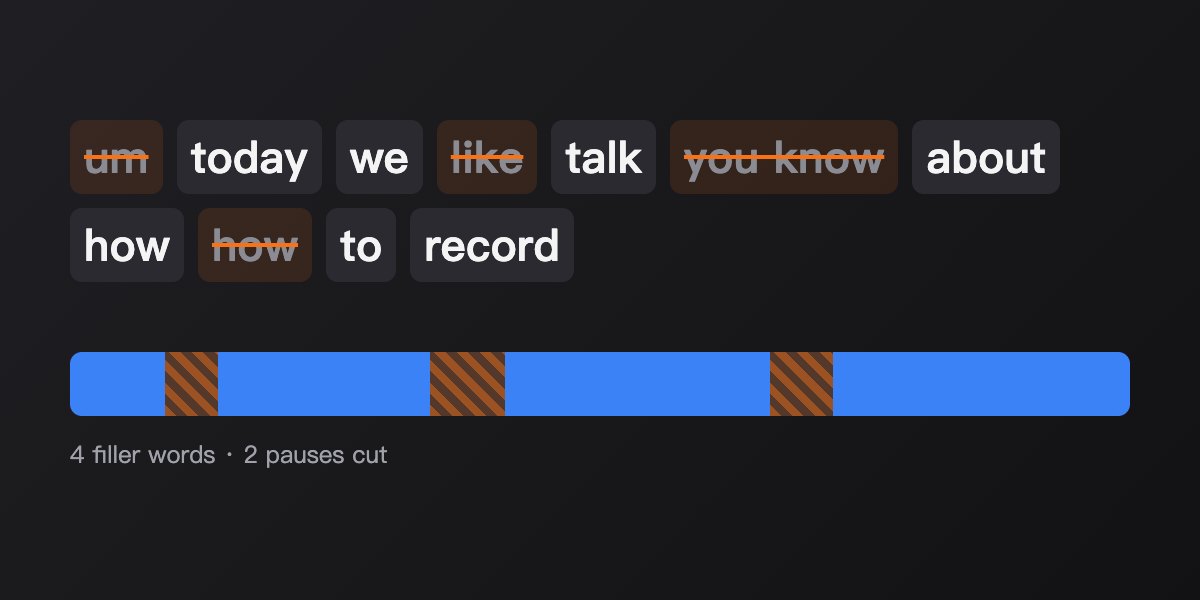
After upload you're in Studio: the AI works through the switches you turned on, every step lands on the timeline, and you can say what to change or drag it yourself.


 THE HABIT LOOP
A few vertical shorts with captions from one long video.
Word-by-word captions, key words highlighted.
Clear burned-in subtitles from your own old videos.
Dub your video into another language.
Sound effects where they belong.
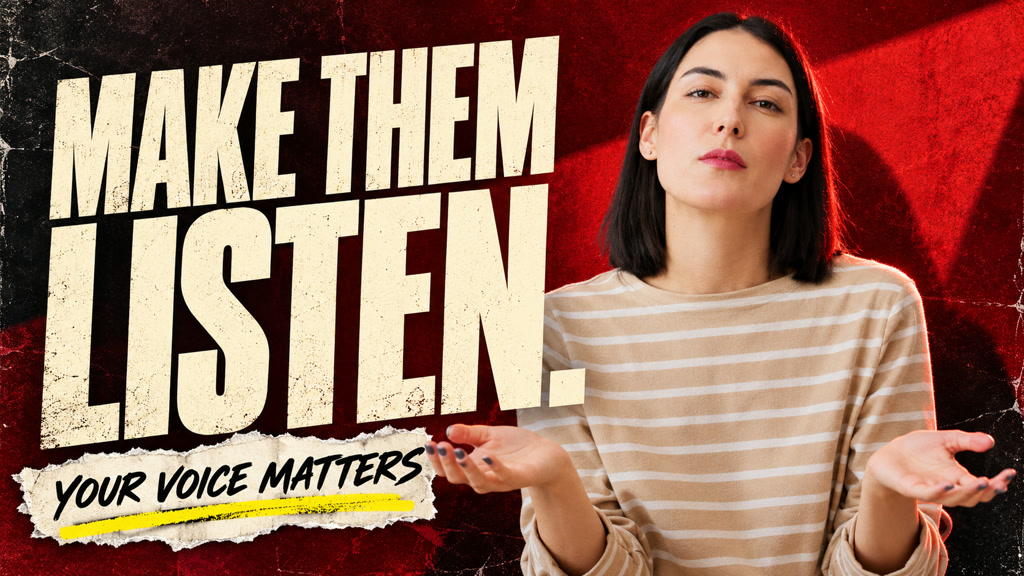
Covers from your own footage, wide and vertical.

No. Captions and shots follow what you said.
Yes. Add it in Studio and tell the AI to use it.
Yes. Type “start straight with the product”.
Yes. Duplicate it in Studio and change the opening or music.
The AI places the product shots.
Edit my product video