Long video to shorts
A few vertical shorts with captions from one long video.
Online course video editor
Upload a recorded lesson. Get it back clean and captioned.
To camera or screen recording.
Retakes, captions and voice cleanup start on.
Cut too much? Drag it back.
Graphics and sound effects are under Editing.
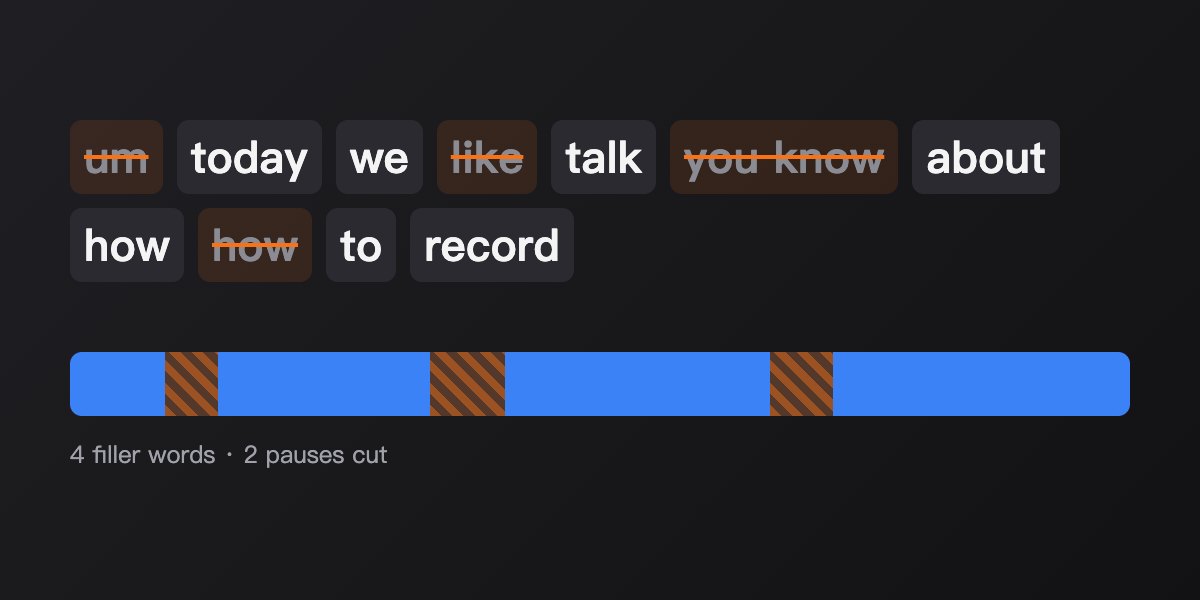
After upload you're in Studio: the AI works through the switches you turned on, every step lands on the timeline, and you can say what to change or drag it yourself.
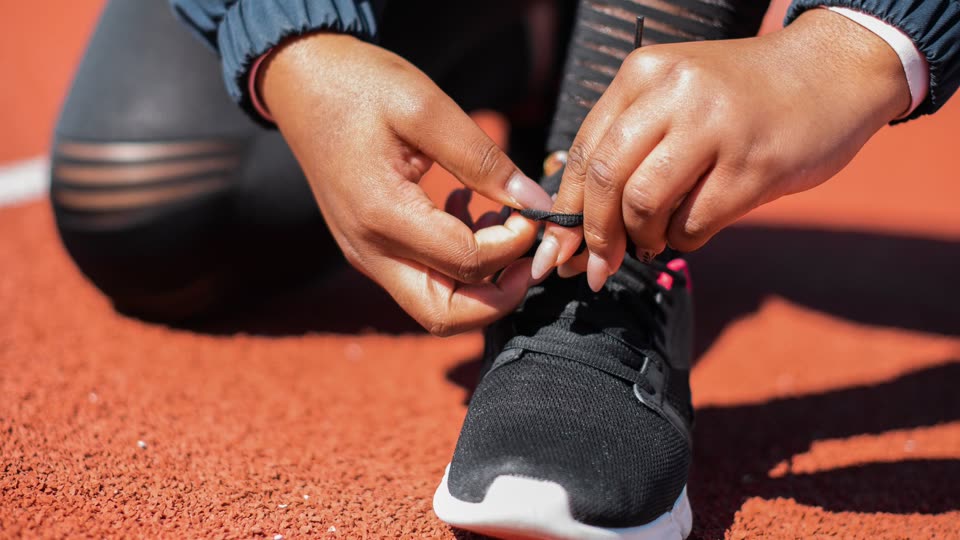

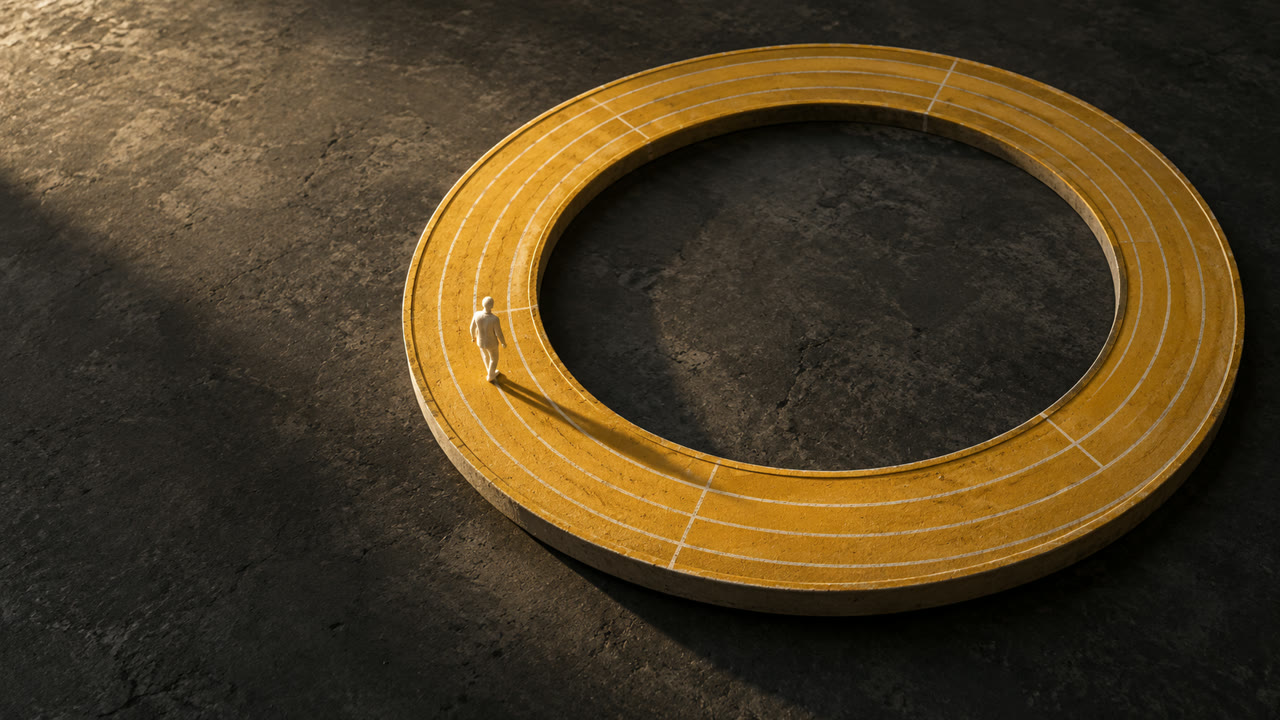 THE HABIT LOOP
A few vertical shorts with captions from one long video.
Word-by-word captions, key words highlighted.
Clear burned-in subtitles from your own old videos.
Dub your video into another language.
Sound effects where they belong.
Covers from your own footage, wide and vertical.
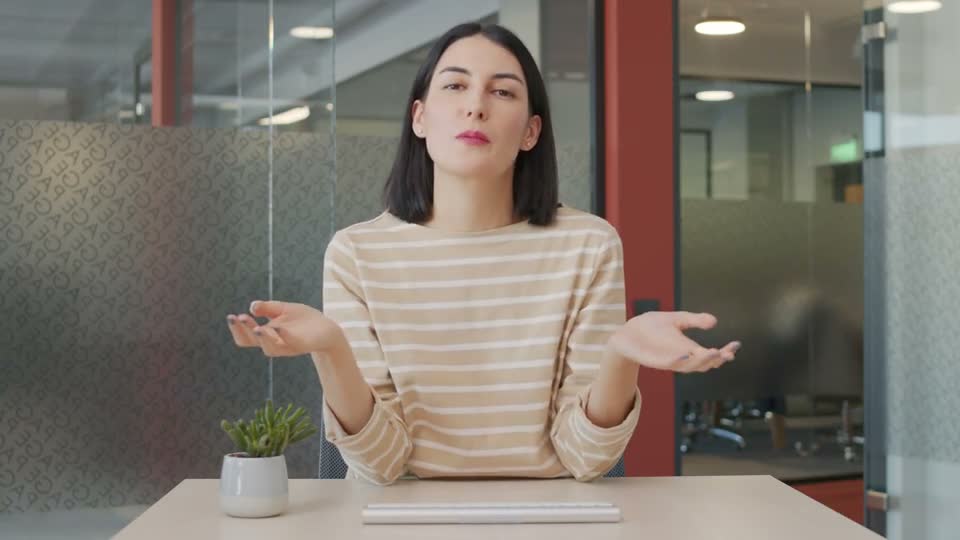
Yes. As long as someone is talking.
Only long gaps. To keep them, type “keep the pauses while I work through problems”.
Yes. Run the edited lesson through the video translator.
One lesson at a time, with the same switches, so they match.
Record it and upload it.
Edit my lesson