If you're working out how to make a video montage from multiple clips, don't start with the clips. Start with what it's about: a change, a place or a process. Then give each shot one job and cut on movement and the beat. Upload the clips together, describe the feel in a sentence, and adjust the first version you get back.
Pick a structure first
Most montages use one of three:
| Structure | Order | Good for |
|---|---|---|
| Before → process → result | How it started, the making, the finished thing | Products, makeovers, cooking, crafts |
| Arrive → explore → leave | Where we are, the details, the exit | Travel, events, a shop visit |
| Build-up → peak → resolve | Slow shots, faster ones, a final hold | Highlights, sport, launches |
Write the structure as one sentence: "Shop exterior first, then the coffee being made, ending on the finished cup." That sentence is what you'll type into Pireel.
Give each shot one job
- An establishing shot says where we are. One is enough; then get close.
- Detail shots carry most montages: hands, textures, close-ups.
- An action shot holds one movement that starts and finishes in frame.
- The closing shot shows the result and stays on screen longer than the rest. Without one, the video stops instead of landing.
Cut anything that repeats another shot, however good it looks. Five strong shots beat fifteen similar ones.
Cut on action and to the music
Cut while something is moving, a hand reaching or a door opening, and the change feels smooth. Match the pace to the music: switch shots on the beat in fast passages, and let them breathe in slow ones. Slow-motion shots over a fast track feel wrong. Vary the shot lengths too: when every shot runs the same time, it starts to feel like a slideshow. Keep natural sounds like pouring or a door; they add texture.
How to make a montage in Pireel
- Open the AI video montage maker and click Upload clips. Up to 10, added in the order you want.
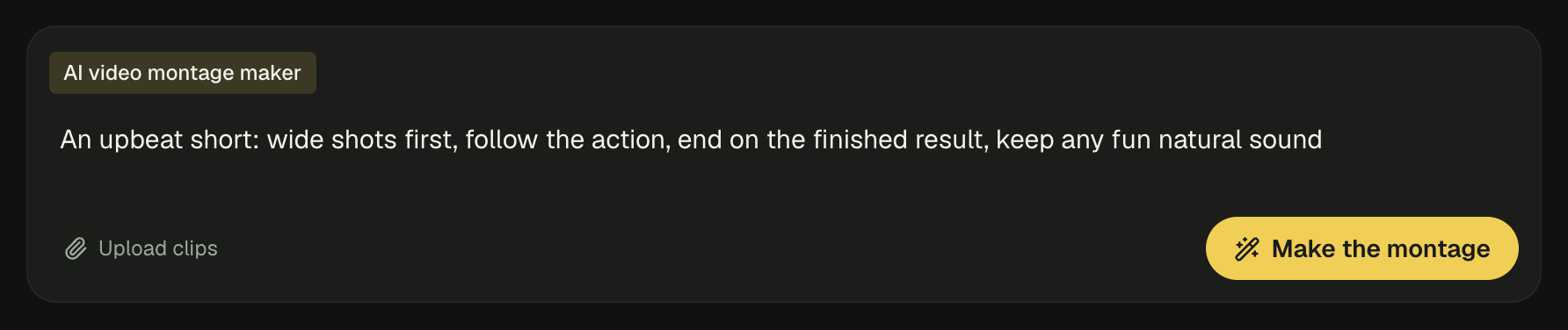
- Replace the example text in the box with your own request. The more specific, the better:
A 30-second short: open on the shop exterior, follow the coffee being made, end on the finished cup. Upbeat music, keep the sound of pouring, no narration.
- Click Make the montage. After you sign in, the project opens in Studio.
"Just mix them all" leaves shot choice and order to chance. If a shot has to be in it, describe what's in the frame: "use the latte art close-up".
Adjust shot by shot
Watch the first version through, then ask for specific changes in the project chat:
Move the shop exterior to the start, hold the finished cup for two more seconds, and fade the music out at the end.
To use your own track, add it to the project's media, then say where it goes and whether it should dip under natural sound. Click Export when it's right.
For adding footage over someone talking rather than a pure montage, see B-roll for talking-head video.
Frequently asked questions
How many clips can I upload at once?
Up to 10. They reach the project in the order you add them.
Can the montage have music?
Yes. Describe the feel you want, like "upbeat" or "calm", or add your own track to the project and say to use it.
Can I set the order of the shots?
Yes. By default they follow the order you added them; you can also ask for "chronological" or "end on the finished product".
Is the natural sound kept?
Interesting natural sound stays, like pouring or laughter. To replace it all with music, say so.